
Fix Slow WiFi: Causes and Solutions Explained
Technology, Home WiFi
Why Your WiFi Is Slow and How to Fix It Properly
If your WiFi feels sluggish, buffers at the worst moments, or drops out when everyone’s online, you’re not alone. Understanding why it happens is the first step to fixing it properly—without wasting money on random gadgets you don’t need.
1. Why Your WiFi Is Slow
Slow WiFi usually isn’t caused by a single issue. It’s more like traffic on a busy road: too many cars, narrow lanes, and the occasional accident all combine to slow everything down. Here are the most common culprits.
Your internet plan is the real bottleneck
WiFi can only be as fast as the connection coming into your home. If you pay for a 50 Mbps plan but have four people streaming HD video, joining video calls, and gaming at once, you’ll hit the limit quickly. Many people blame the router when the problem is actually the internet speed you’re subscribed to.
Weak signal and bad router placement
WiFi uses radio waves, and those waves hate obstacles. Thick walls, floors, metal appliances, aquariums, and even mirrors can weaken your signal. Tucking your router in a cabinet, behind a TV, or in the basement almost guarantees dead zones and slow speeds in far rooms.
Congested WiFi channels and neighbor interference
In apartments or dense neighborhoods, dozens of routers may be broadcasting on the same channels. When that happens, they “talk over” each other, slowing everyone down. Older 2.4 GHz networks are especially crowded, because many devices—baby monitors, smart plugs, cordless phones—compete there too.
Too many devices and background apps
Phones syncing photos, consoles downloading updates, smart TVs streaming in the background—these all quietly eat bandwidth. The more devices connected, the more your router has to juggle, and the slower each one can feel, especially during busy evening hours.
Old or overloaded equipment
Routers don’t last forever. Older models may not support modern WiFi standards, faster speeds, or lots of devices at once. A cheap router provided years ago by your internet company may struggle badly with today’s streaming, smart home, and work-from-home demands.
Software issues, malware, or outdated devices
Sometimes the WiFi isn’t slow—your device is. Outdated operating systems, old network drivers, malware, or too many apps running at once can make even a good connection feel painfully slow on a particular laptop or phone.
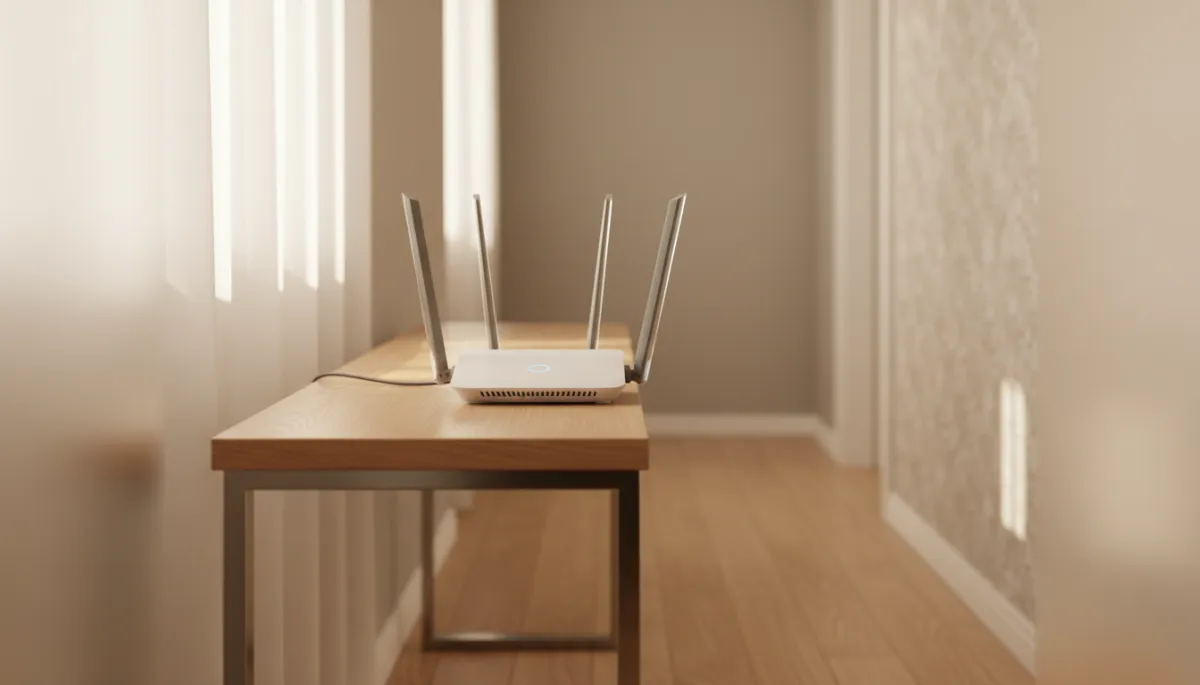
Simply moving your router to a central, open spot can noticeably improve coverage.
2. How to Fix It Properly (Step by Step)
Instead of randomly rebooting things and hoping for the best, follow this simple, structured approach. It helps you identify the real problem and fix it in the right order—often without calling your provider.
Step 1: Test your actual internet speed
Start by checking whether you’re getting the speed you pay for:
Connect a laptop directly to your modem with an Ethernet cable, if possible.
Run a speed test using a reputable site or app.
Compare the result to your plan’s advertised download and upload speeds.
If speeds are far below what you’re paying for, even over a cable, the issue is likely with your provider or line. That’s when contacting your ISP makes sense.
💡 Pro Tip: Run several tests at different times of day. Evening slowdowns often point to congestion on your provider’s network.
Step 2: Reposition and tidy up your WiFi network
If your incoming speed is fine, focus on WiFi coverage:
Place the router in a central, elevated, open location—ideally in the middle of your home, not hidden in a corner or cupboard.
Keep it away from large metal objects, thick brick walls, and big appliances like fridges or microwaves.
If your router has antennas, angle a couple vertically and one horizontally to help cover both floors and long hallways.
Step 3: Use the right WiFi band and reduce interference
Most modern routers broadcast two main bands: 2.4 GHz and 5 GHz.
2.4 GHz travels farther but is slower and more crowded.
5 GHz is faster with less interference but has a shorter range.
Connect devices that need speed—like TVs, laptops, and consoles—to the 5 GHz network when they’re within range. Use 2.4 GHz for smart plugs, older phones, and devices farther away. In your router’s settings, you can also change to a less crowded channel or let the router automatically pick the best one.
Step 4: Limit bandwidth hogs and secure your network
Check for devices or apps quietly consuming data:
Pause large downloads or game updates when others are on video calls or streaming.
Close unused streaming tabs and cloud backup apps on laptops and phones.
Make sure your WiFi has a strong password so neighbors or strangers aren’t using your connection.
Step 5: Update, reboot, or replace outdated hardware
A quick reboot can clear temporary glitches, but for a lasting fix:
Log in to your router’s admin page and install any available firmware updates.
Update network drivers and operating systems on your main devices.
If your router is more than five years old, consider upgrading to a modern dual-band or mesh system—especially in larger homes.
📌 Key Takeaway: Fix WiFi issues in order—check your plan, improve placement, optimise settings, then upgrade hardware only if you truly need to.
Final Thoughts
Slow WiFi doesn’t have to be a mystery or a constant frustration. Once you understand why it’s slow—whether it’s your plan, your router, interference, or overloaded devices—you can take clear, practical steps to fix it properly. Start with simple changes like better placement and band selection, then move on to settings and hardware upgrades only if they’re truly needed. Your next movie night or video call will thank you.


